
Quick answer
Use App Limits for a daily cap and schedules for protected time
On iPhone, Apple Screen Time can set App Limits and Downtime. If you want a dedicated focus workflow, ScreenPup adds focus sessions, scheduled screen-free windows, daily limits, limited unlocks, and reports in one place.
Try Apple Screen Time first
Open Settings, choose Screen Time, and review your current activity before creating a rule. App Limits can cap time in a selected app or category. Downtime can protect a repeat period when only allowed apps and calls should remain available.
Built-in controls are a good fit when you need a simple cap and do not mind managing the rule in Settings. Apple changes labels occasionally, so use the current Apple Support instructions linked below if your screen looks different.
- Use App Limits when total daily time is the problem.
- Use Downtime for a repeat evening or morning window.
- Keep essential apps allowed before the schedule begins.
Use an iPhone app blocker when the routine needs more structure
A dedicated iPhone app blocker is useful when you want to start a focus session without opening Settings, maintain several routines, control limited breaks, or review the same habit in a clearer dashboard.
ScreenPup uses Apple’s Screen Time permissions to power blocking and reports. It does not need access to the specific content you view inside other apps. ScreenPup currently requires iOS 16.4 or later.
Build one iPhone block around a real trigger
Choose a trigger you can name precisely: opening Instagram before getting out of bed, checking TikTok between study tasks, or scrolling Reddit after lights out. Then create a rule for that moment rather than setting a vague goal to use your phone less.
A first block should usually protect 30 to 90 minutes and include only the apps linked to that trigger. After a week, check whether screen time and pickups changed before making the rule stricter.
Choose the right kind of iPhone restriction
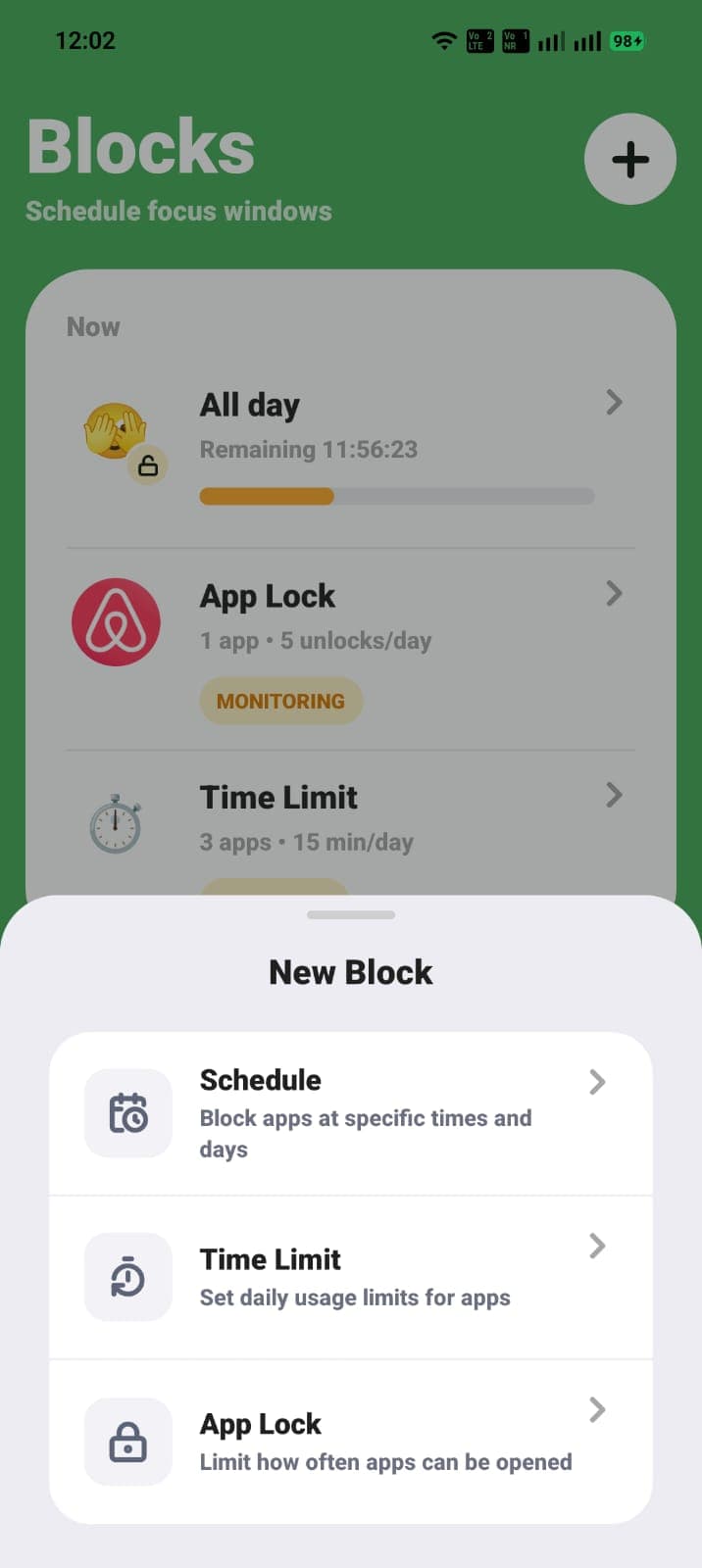
Use a focus session for a task that starts at different times. Use a repeat schedule for predictable work, study, morning, or bedtime windows. Use a daily app limit for apps you still need in small doses. Use App Lock when repeated opening, rather than long sessions, is the main problem.
This separation keeps the phone useful. You are applying a precise restriction to a precise habit instead of treating every app and every hour as equally distracting.
ScreenPup setup
How to use ScreenPup for this goal
- 01
Enable Screen Time access
Follow ScreenPup's onboarding to grant the iPhone permissions required for app blocking and usage reports.
- 02
Pick the apps
Select only the apps connected to the routine you want to change.
- 03
Choose a session, schedule, or limit
Protect a one-off task, automate a repeat window, or cap total daily use.
- 04
Check the result
Review weekly trends, pickups, focus score, and top apps before adjusting the rule.
Try the setup
Turn the guide into one rule today
ScreenPup combines app blocking, focus sessions, schedules, daily limits, limited unlocks, and usage reports on iPhone and Android.
All ScreenPup features require a subscription.Specific questions
Frequently asked questions
Can I completely block an app on iPhone?
You can restrict selected apps with Apple Screen Time or a third-party blocker that uses Apple’s Screen Time framework. The exact behavior depends on the rule and permissions you choose.
Learn more: Understand app blocker rulesCan I block apps at certain times on iPhone?
Yes. Apple Downtime supports a repeat schedule, and ScreenPup can create scheduled screen-free windows for routines such as mornings, study, work, and bedtime.
Learn more: Create a timed app blockIs ScreenPup an iPhone screen-time app?
Yes. ScreenPup is available for iPhone and combines app blocking, focus sessions, daily limits, schedules, limited unlocks, and screen-time reports. It requires iOS 16.4 or later.
Learn more: Build a screen-time reduction plan