
Quick answer
Create one repeat schedule around a predictable trigger
Choose the days, start time, end time, and distracting apps. Keep essentials available. Start with work, study, morning, or bedtime, then review the schedule after seven days before adding another one.
Choose the time window before choosing the apps
Start with the part of the day you want to protect. A precise window such as 8:30 to 10:00 AM is easier to evaluate than an all-day intention to be more focused.
Once the window is clear, choose the apps that conflict with it. The right block list for work may be different from the one for bedtime.
- Morning: block feeds until the routine is complete.
- Work or study: protect the first focused session.
- Bedtime: start before the usual scroll begins.
Use built-in schedules on iPhone or Android
On iPhone, Screen Time Downtime can schedule a period when only allowed apps and calls remain available. On supported Android devices, Digital Wellbeing Focus mode can pause selected apps on a schedule.
These settings are useful for a single basic routine. Check your allowed or excluded apps carefully before the first scheduled block begins.
Use ScreenPup for several screen-free windows
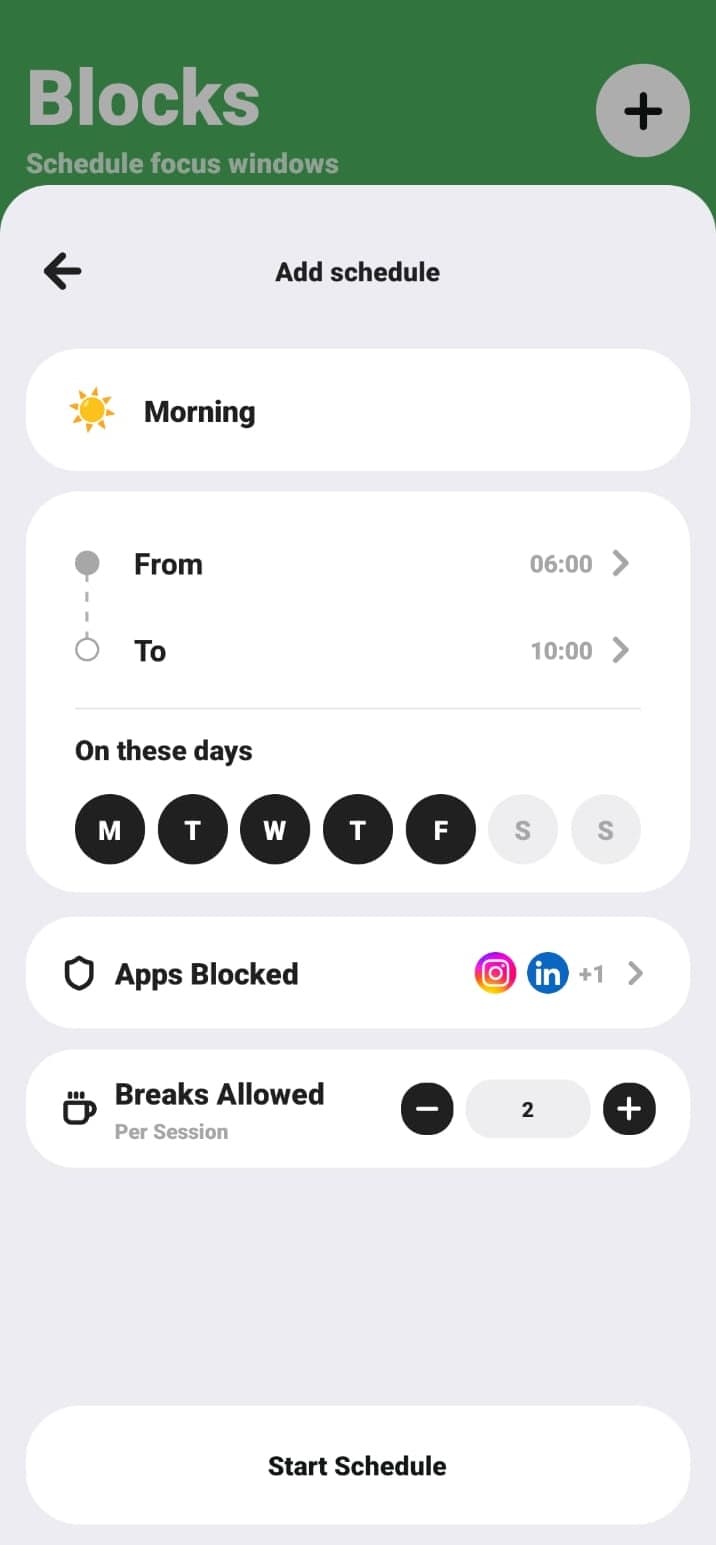
ScreenPup lets you create smart schedules for mornings, deep work, wind-down, bedtime, and other repeat periods. You can keep different app lists and timing rules aligned with different parts of your day.
Limited unlocks and breaks add flexibility when a legitimate need appears. Because the schedule remains in place, one exception does not have to erase the entire routine.
Fix a schedule that is too easy or too strict
If you keep bypassing a block, shorten the window or remove apps that you genuinely need. If the schedule feels easy but screen time is unchanged, start it earlier or add the app that became the new distraction.
Change one variable at a time: timing, app list, or break rule. That makes it easier to understand why the schedule improved or failed.
ScreenPup setup
How to use ScreenPup for this goal
- 01
Create a new schedule
Name it after the routine, such as Morning, Study, Deep Work, or Wind-down.
- 02
Set days and times
Choose the repeat days and a start and end time you can realistically keep.
- 03
Choose blocked apps
Add the apps that directly compete with the purpose of that schedule.
- 04
Review the first week
Use ScreenPup reports to decide whether to change the timing, list, or break rule.
Try the setup
Turn the guide into one rule today
ScreenPup combines app blocking, focus sessions, schedules, daily limits, limited unlocks, and usage reports on iPhone and Android.
All ScreenPup features require a subscription.Specific questions
Frequently asked questions
Can I block apps at certain times every day?
Yes. Use a repeat schedule and select the days, start time, end time, and apps. You can keep different schedules for workdays and weekends.
Learn more: Choose the right blocking ruleHow do I block apps at night?
Create a schedule that begins before your normal scrolling starts and ends after your wake time. Keep calls, alarms, and other essentials available.
Learn more: Stop late-night doomscrollingCan I schedule different app lists for work and bedtime?
Yes. Separate schedules are useful because an app that is acceptable during the evening may still be disruptive during deep work, and vice versa.
Learn more: Build a work or study block