
Quick answer
Start with Digital Wellbeing, then add a dedicated blocker if needed
Android Digital Wellbeing can set app timers and pause distracting apps with Focus mode. Use ScreenPup when you want repeat screen-free schedules, immediate focus sessions, daily limits, limited unlocks, and a consistent progress dashboard.
Use Android Digital Wellbeing for basic limits
Open Settings and find Digital Wellbeing & parental controls. The dashboard shows which apps take your time. App timers can set a daily allowance, while Focus mode can pause selected apps during a focus period or schedule.
Android manufacturers sometimes place these controls in slightly different menus. Search Settings for Digital Wellbeing, app timers, or Focus mode if the path on your phone is different.
- Use an app timer for a daily cap.
- Use Focus mode for a temporary pause.
- Review the dashboard before deciding what to restrict.
Choose an Android app blocker for a repeatable system
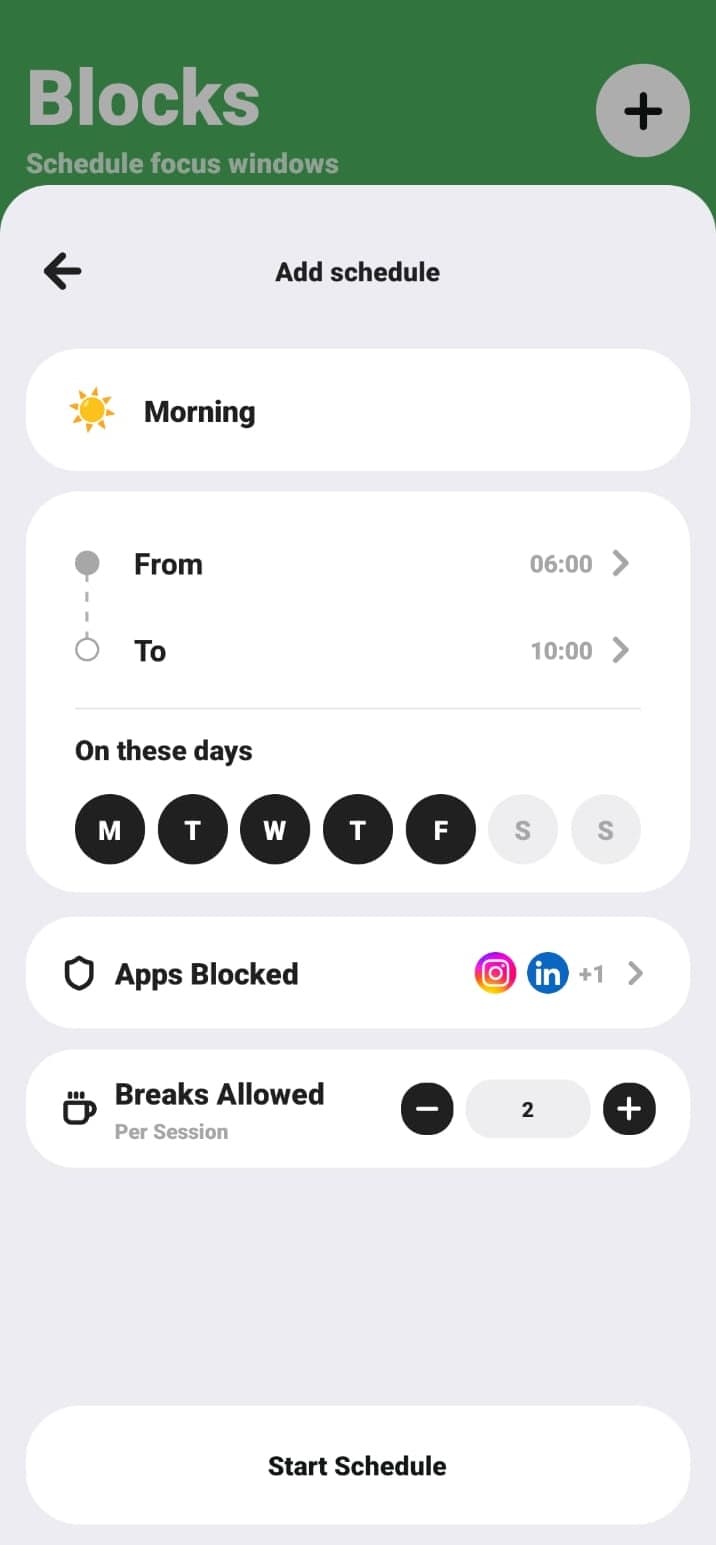
A third-party Android app blocker can make it easier to combine several rules and review them together. ScreenPup supports focus sessions, app blocking, daily limits, screen-free schedules, limited unlocks, and usage reports.
On Android 14 and later, ScreenPup uses AccessibilityService permission to help manage active apps that you add to your block list. The control is limited to the apps and permissions you choose during setup.
Block the trigger, not every Android app
Start with the apps you open without a clear reason. Short-video feeds, social apps, games, shopping apps, and forums are common candidates, but your own usage dashboard is more useful than a generic list.
Keep phone calls, maps, authentication, banking, and other essential tools available. A precise list makes a focus rule easier to trust and lowers the chance that you disable it during a legitimate task.
Test one Android block for seven days
Create one rule around the most expensive part of your day. That could be a 60-minute morning block, a two-hour study schedule, or a bedtime window that starts before you normally get pulled into a feed.
Review total screen time, pickups, and top apps after a week. If the same app still dominates, strengthen that one rule. If the habit moves to another app, update the list instead of making the entire phone inaccessible.
ScreenPup setup
How to use ScreenPup for this goal
- 01
Grant the required permissions
Follow ScreenPup's Android onboarding so blocking and usage reports can work on your device.
- 02
Select your distraction list
Choose the small set of Android apps connected to the habit you want to change.
- 03
Set the boundary
Start a focus session, make a repeat schedule, add a daily limit, or limit repeated opens with App Lock.
- 04
Use reports to refine it
Check weekly and monthly trends, focus score, streaks, pickups, and top apps.
Try the setup
Turn the guide into one rule today
ScreenPup combines app blocking, focus sessions, schedules, daily limits, limited unlocks, and usage reports on iPhone and Android.
All ScreenPup features require a subscription.Specific questions
Frequently asked questions
Does Android have a built-in app blocker?
Android Digital Wellbeing includes app timers and Focus mode on supported devices. These tools may be enough for simple limits; a dedicated blocker is useful when you want more routines and reports in one place.
Learn more: Compare blockers with built-in limitsCan I block apps at certain times on Android?
Yes. Focus mode can be scheduled on supported Android devices, and ScreenPup can create repeat screen-free windows for work, study, mornings, bedtime, and other routines.
Learn more: Set a scheduled app blockCan I set a daily app time limit on Android?
Yes. Digital Wellbeing offers app timers, and ScreenPup can set daily limits alongside focus sessions, schedules, and screen-time reports.
Learn more: Choose a daily app limit